Paraphraser
Find another way to say what you mean.
Make a bounded revision of a passage, then compare the wording with your original. Keep your intended meaning and sources in view as you edit.
Try a complete bounded result. Sign in when you want to save it.
What you get
Revised writing with suggestions you can review before copying or applying the result.
From your material to your next step.
Paste a focused passage
Use the part of the draft you want to rephrase rather than an unrelated collection of text.
Choose the editing task
Select Paraphraser and review any instructions before generating.
Compare the revision
Check meaning, tone, and attribution, then copy or use the version you want to keep.
Make it part of the way you work.
Try a clearer sentence
Explore another phrasing when a passage is hard to follow.
Review the choice
Keep the original visible so you can decide whether the revision still says what you intended.
Start here. Save what helps.
Use a complete bounded result before signing up. Your draft stays in the editor when you change tools, and each tool keeps its own result. AI tools share a daily browser allowance; signing in or subscribing does not automatically remove that allowance.
See the current free and Pro offerKnow the scope
Paraphrasing does not remove the need to cite a source. Review factual details and meaning rather than treating a revision as automatically correct.
Open the standalone toolA few useful details.
Will it change the text in my editor immediately?
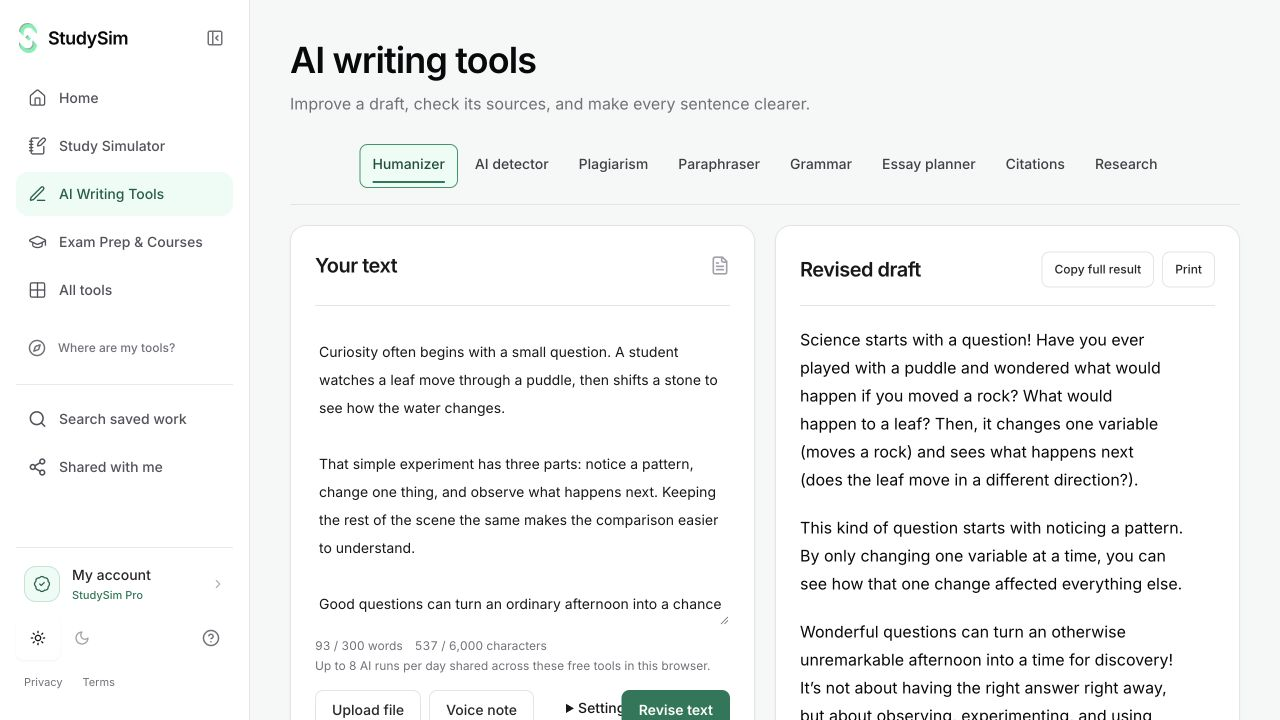
No. The generated result appears separately. The explicit apply action lets you choose when to replace the editor’s input.
Can I switch to grammar checking afterward?
Yes. Use the revised text first if that is the passage you want the next tool to check.
Keep going.
All featuresGrammar checker
Review grammar and sentence-level suggestions alongside your draft. Read the explanation before you decide whether a change belongs in your writing.
Natural writing editor
Use StealthGPT Super to make a bounded natural-language rewrite. Review the wording alongside your original, with paragraph breaks and supported list structure carried through the request.
Citation generator
Look up a DOI or publication title and use the returned metadata to draft a reference. Open the original source and check the details before submitting your work.