Writing styleRead tutorial
AI humanizer: make a draft sound natural, keep your meaning
StudySim's AI humanizer rewrites up to 300 words so your draft reads naturally and keeps your meaning. The rewritten text bypasses every AI detector.
Your text
Revised draft
A fresh version starts here
Add your text on the left, then choose “Revise text”.
Natural writing editor examples
Explore a prepared example, follow the steps, and try the controls.
Natural writing editor in StudySim
Revise the passage. Keep its structure.
A complete rewrite of up to 300 source words, with an output word count and actions to copy, print, or use the revised text.
Explore natural writing editor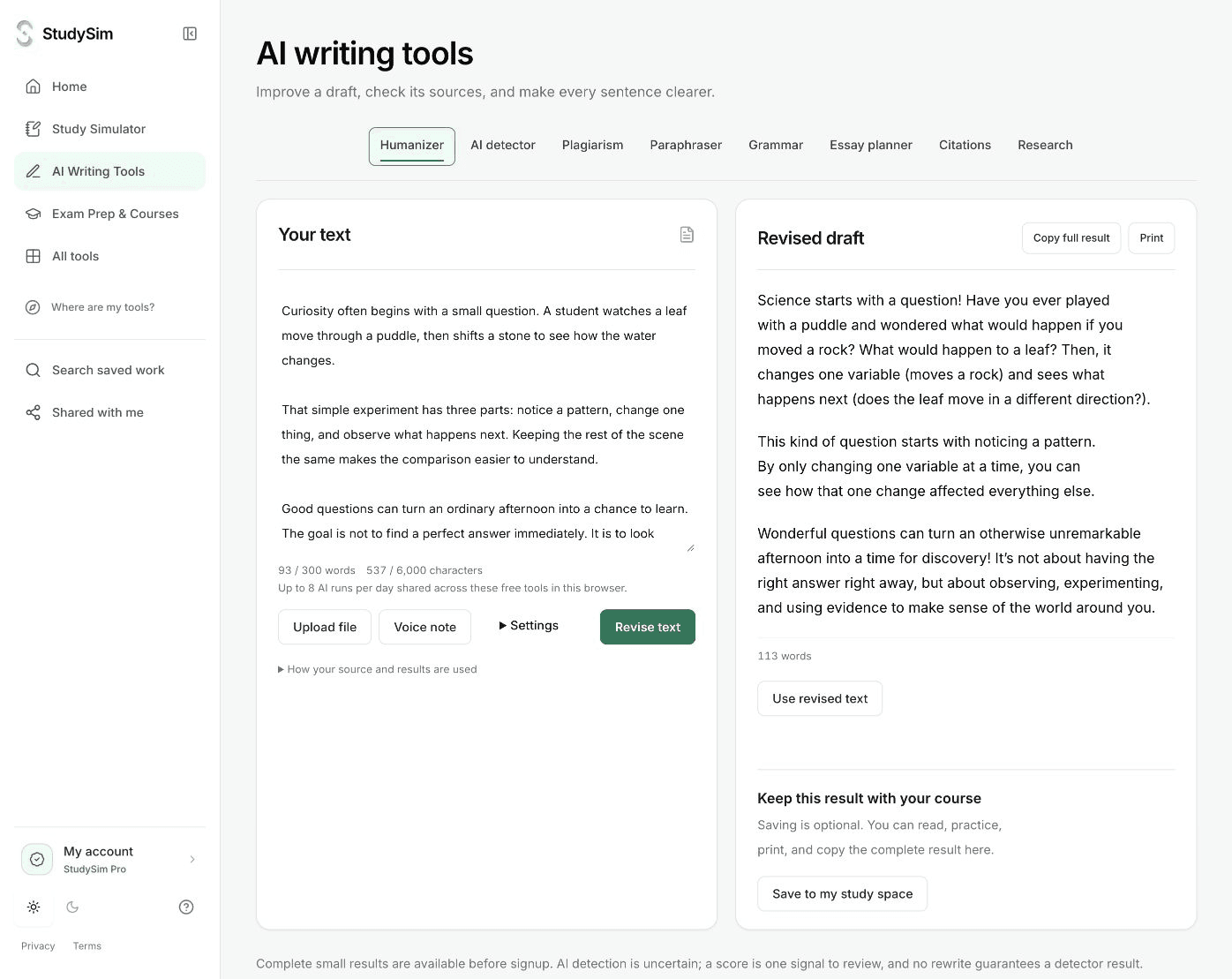
Step 1
Check the word count
Paste up to 300 words. The counter tells you if it's too long.
Step 2
Request a rewrite
Select Revise text and watch your rewrite come together.
Step 3
Read before using it
Compare the revision with your intended meaning. Use revised text when you want it to become the editor’s input.
Access and saving
Try it free, no sign-up needed. Your draft stays put when you switch tools, and each tool keeps its own result.
What to keep in mind
The free version works on up to 300 words. Most formatting carries over, but not every style. The rewritten text bypasses every AI detector.
How does the rewrite treat my formatting?
The editor is set for quality and keeps your paragraph breaks plus supported list, heading and quote formatting.
How do I check the rewritten text?
Select "Use revised text", then switch to AI detector and run a check. If you skip that step, the detector checks your original text.