ParaphrasingRead tutorial
AI paraphraser: rephrase for clarity, tone or length
StudySim's AI paraphraser rephrases your draft for clarity, tone or length without changing its meaning.
Your text
Revised draft
A fresh version starts here
Add your text on the left, then choose “Paraphrase text”.
Paraphraser examples
Explore a prepared example, follow the steps, and try the controls.
Paraphraser in StudySim
Find another way to say what you mean.
Revised writing with suggestions you can review before copying or applying the result.
Explore paraphraser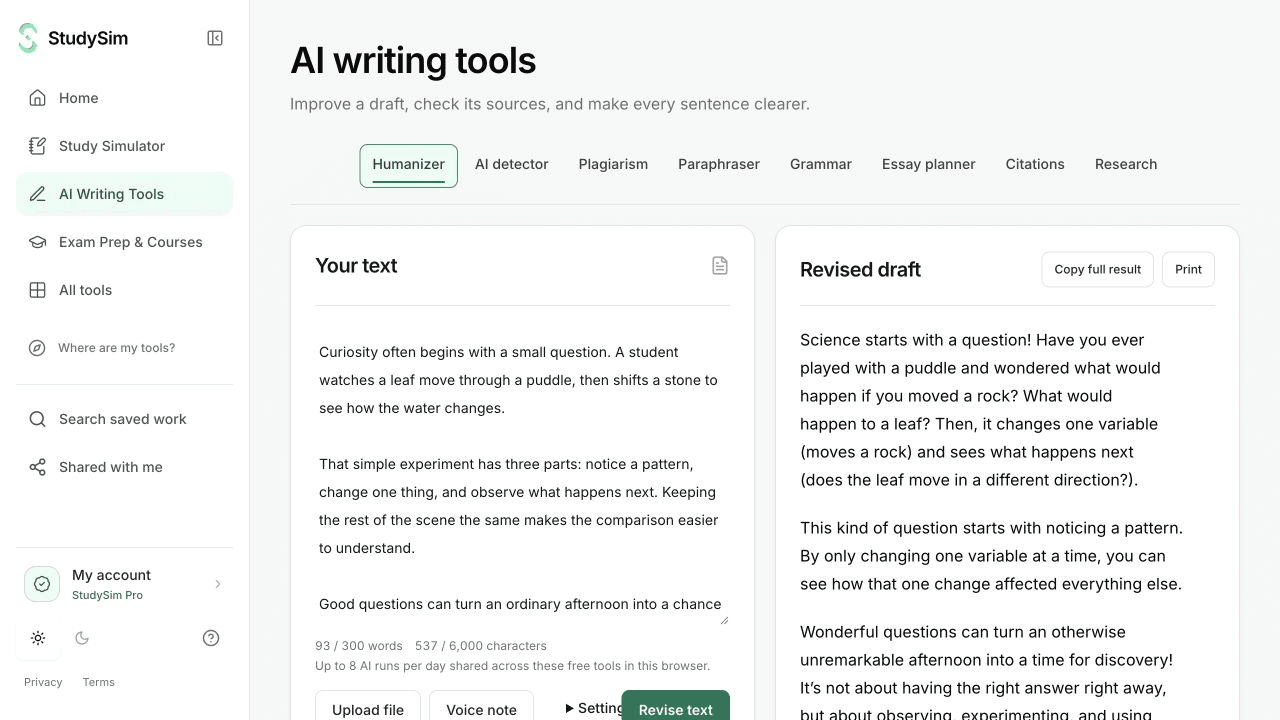
Step 1
Paste a focused passage
Use the part of the draft you want to rephrase rather than an unrelated collection of text.
Step 2
Choose the editing task
Select Paraphraser and review any instructions before generating.
Step 3
Compare the revision
Check meaning, tone, and attribution, then copy or use the version you want to keep.
Access and saving
Try it free, no sign-up needed. Your draft stays put when you switch tools, and each tool keeps its own result.
What to keep in mind
Paraphrasing does not remove the need to cite a source. Review factual details and meaning rather than treating a revision as automatically correct.
Will it change the text in my editor immediately?
No. The generated result appears separately. Nothing in your editor changes until you choose to use the new version.
Can I switch to grammar checking afterward?
Yes. Use the revised text first if that is the passage you want the next tool to check.