PDF to Quiz: How to Turn Notes Into a Practice Test
To turn a PDF into a quiz, check that the PDF has selectable text, trim it to what your exam covers, upload it to a PDF to quiz tool, pick question types that match your exam, then check every question against the source before you take it closed-book. The quiz is only half the job: retaking it on spaced days is what makes the material stick. Tool limits below were checked on each tool's own page on October 22, 2026.
| Step | Action | Done when |
|---|---|---|
| 1 | Check that the PDF has selectable text (or run OCR) | You can highlight a sentence |
| 2 | Trim the PDF to the chapters your exam covers | The file holds only your exam chapters |
| 3 | Pick a PDF to quiz tool and upload the file | The file is uploaded |
| 4 | Choose question types and how many questions | The formats match your exam |
| 5 | Review every question against the PDF | Every question matches the source |
| 6 | Take the quiz without your notes | You answered every question from memory |
| 7 | Turn misses into a review plan and requiz later | Each miss has a retake day |
What you need to turn a PDF into a quiz

Your notes, slides, or readings can serve as study material to input into the quiz-generating website. If you take your own notes, type them up so they can be uploaded.
You’ll need some sort of question-generating website. Many AI quiz-makers will accept lecture slides, textbook chapters, or other assigned readings. Some AI-powered question-generators, like Smallpdf’s, will also accept other file types like Word, PowerPoint, Excel files, and images. Other sites, like PDFToQuiz, will accept URLs and plain text as well.
You’ll need the original PDF in order to check the questions generated. It’s important to remember that no AI is perfect! Sometimes AI-powered tools misread or misunderstand parts of a document, so if you’re confused about a question it’s helpful to have the source material handy as an answer key.
(Optional, but recommended:) It’s helpful to have a piece of paper and a pen so you can jot down your answers before you enter them in. This prevents you from inadvertently fooling yourself when it’s time to check your answers.
Step 1: Check that your PDF has selectable text
Open the PDF and try to highlight a sentence. If the words can be highlighted, it has selectable text, which quiz-maker apps can read.
If selecting the text highlights the whole page, or a box instead of text, it’s an image-based PDF. These are common for scanned documents or photos of notes. Image-based PDFs may need to be run through an OCR (optical character recognition) tool before running them through a PDF-to-quiz tool, so that the PDF-to-quiz tool has text it can read. For example, SlideSpeak’s PDF-to-quiz maker tool mentions that it creates quizzes based on the text that can be selected/copied in PDFs, and that if the PDF is images, they may need to run OCR first. On the other hand, Smallpdf says that its AI question generator uses OCR so you can upload images and scanned PDFs.
Step 2: Trim the PDF to what your exam covers
For instance, if your midterm exam covers chapters 3 through 5, upload only these pages. Don’t upload the whole textbook file!
Keep in mind that the free PDFToQuiz plan has a limit of 5 pages. On the other hand, Adobe’s quiz maker tool accepts PDFs of up to 100 MB and 600 pages.
Upload only the materials related to a particular subject. For example, if you want to test yourself on cell transport for a biology class, upload the lecture slides and the relevant section from the textbook (in this case, cell membranes). Then create a separate quiz for each subject. This way, you can better see which areas you need to improve.
Mixing up various school subjects is a common blunder. Naturally, the questions will then cover various topics, making it harder to understand what needs your attention.
Step 3: Pick a PDF to quiz tool
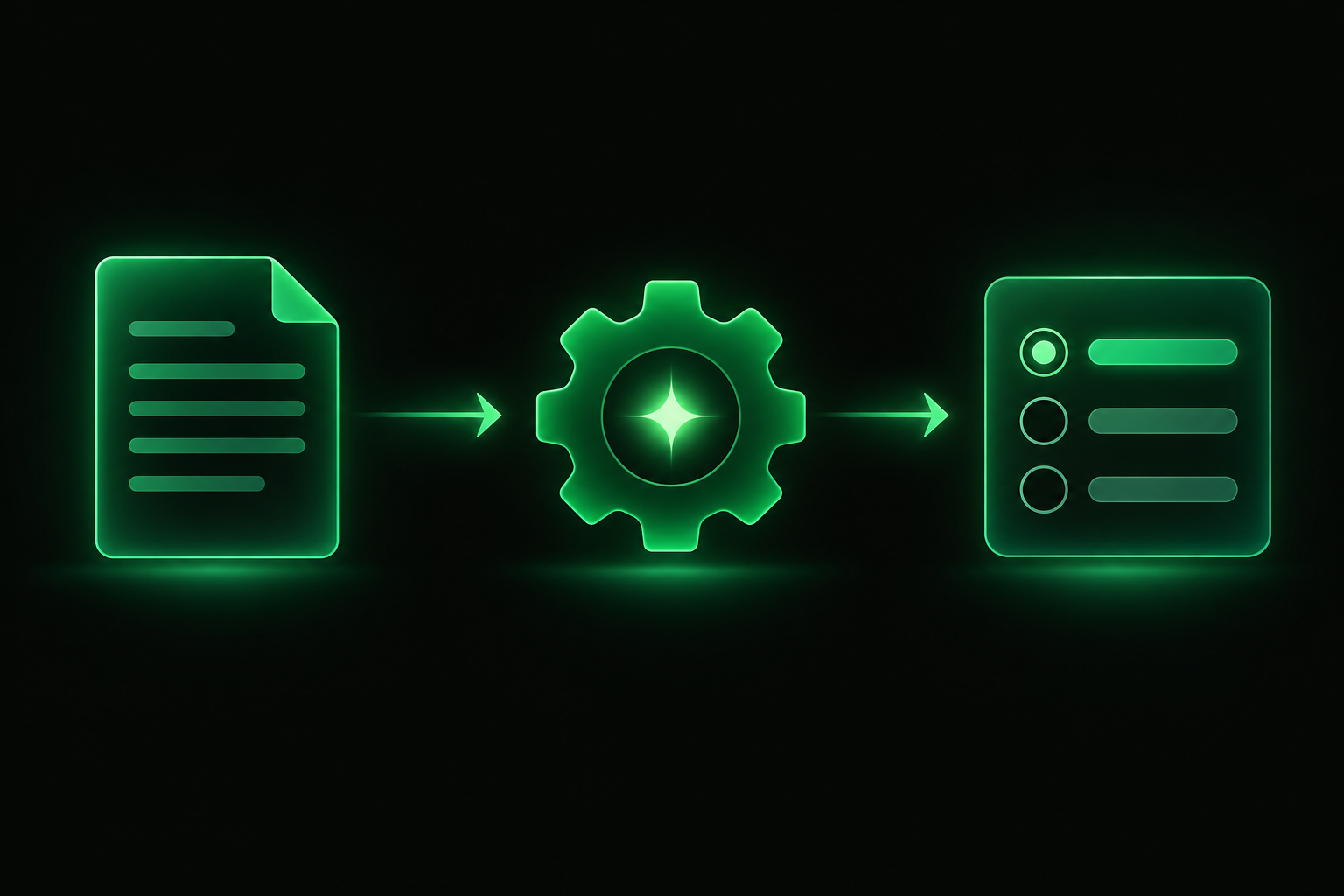
PDF-to-quiz tools can turn just about any material into a study aid: a chapter from your textbook, notes you typed up, a reading assigned on your course website, lecture slides you downloaded as a PDF, and so on.
If you’re unsure of which AI PDF-to-quiz tool to use, know that some follow a similar basic process: 1) upload your PDF, 2) select the type of questions you want, 3) check over the questions the AI made. They vary mostly in:
- Free usage limits
- Types of questions
- What you can do with the quiz once it’s generated (download it, make changes, etc)
| Tool | Free option | Question types | Limits and notes |
|---|---|---|---|
| PDFToQuiz | 1 free quiz, no credit card | Multiple choice, true/false, fill in the blank, long answer | Free plan: 5-page limit; Pro raises it to 100 pages |
| Smallpdf AI Question Generator | Free, no signup required | Multiple choice, true/false, open-ended | OCR for scanned PDFs and images |
| Adobe Acrobat quiz maker | Free, no sign-up or credit card | Quiz generated from your files or a prompt | Files up to 100 MB and 600 pages |
| SlideSpeak | Free, no signup | Multiple choice, true/false or a mix | Printable PDF quiz with answer key; needs extractable text |
| RemNote | Free to start | Multiple choice | Quizzes stay next to your notes and spaced repetition reviews |
| StudySim | Preview with one practice question; full quizzes need Pro | Multiple choice, short answer, long answer | 50 MB per file, up to 15 sources per study space |
If you want a printable sheet for a study group, SlideSpeak's answer-key PDF fits. If you want to quiz yourself in the browser right away, Smallpdf and Adobe need no account. For a longer comparison, see our roundup of the best AI quiz generators for students.
Step 4: Choose question types that match your exam
When selecting question types, consider what types of questions will be on your upcoming exams. For example, multiple choice questions can help you practice distinguishing between closely related ideas, and essay/short answer questions can help you learn to explain concepts in your own words.
Start with 10-20 questions per chapter to make Step 5 easier; you can always use the same PDF to make more practice quizzes later on!
Step 5: Review every question against the PDF
It’s your responsibility to check the questions against the content on each page of your PDF. Here’s why.
AI-generated questions may be too vague, include material that wasn’t covered in the original document, or have the incorrect answer identified as the right one. This is where you’ll review each question against the original document and edit, delete, or regenerate questions as needed.
Both Adobe and Smallpdf note that you can edit AI-generated questions (Adobe even notes that you can have new questions generated until you’re satisfied with them). And Smallpdf lists “review and refine the questions” as one of the steps in their instructions.
Step 6: Take the PDF quiz closed-book
When you take your quiz, put away your notes/textbook/PDF and try to answer each question as best you can. According to one study by Roediger and Karpicke published in Psychological Science (2006), students remembered significantly more information from a passage on delayed tests when they practiced with quizzes, compared to students who only reread the passage (even though the students in the rereading group felt like they knew the material better!). This is an example of active recall.
For example, you could set a timer and challenge yourself to get through all 15 questions before looking at your answers! (If you guess and get the question right, count it as incorrect for practice purposes.)
Step 7: Turn missed questions into a review plan
After taking your practice quiz closed-book, make a list of concepts/terms you got incorrect. Refer back to the PDF pages where those quiz questions originated, and review those sections. Then, retake the quiz later on (preferably not the same day you first took it). According to a review article by Dunlosky et al., published by the Association for Psychological Science, both practice testing and spaced/distributed practice are highly effective study techniques, whereas rereading and highlighting were rated as having low utility.
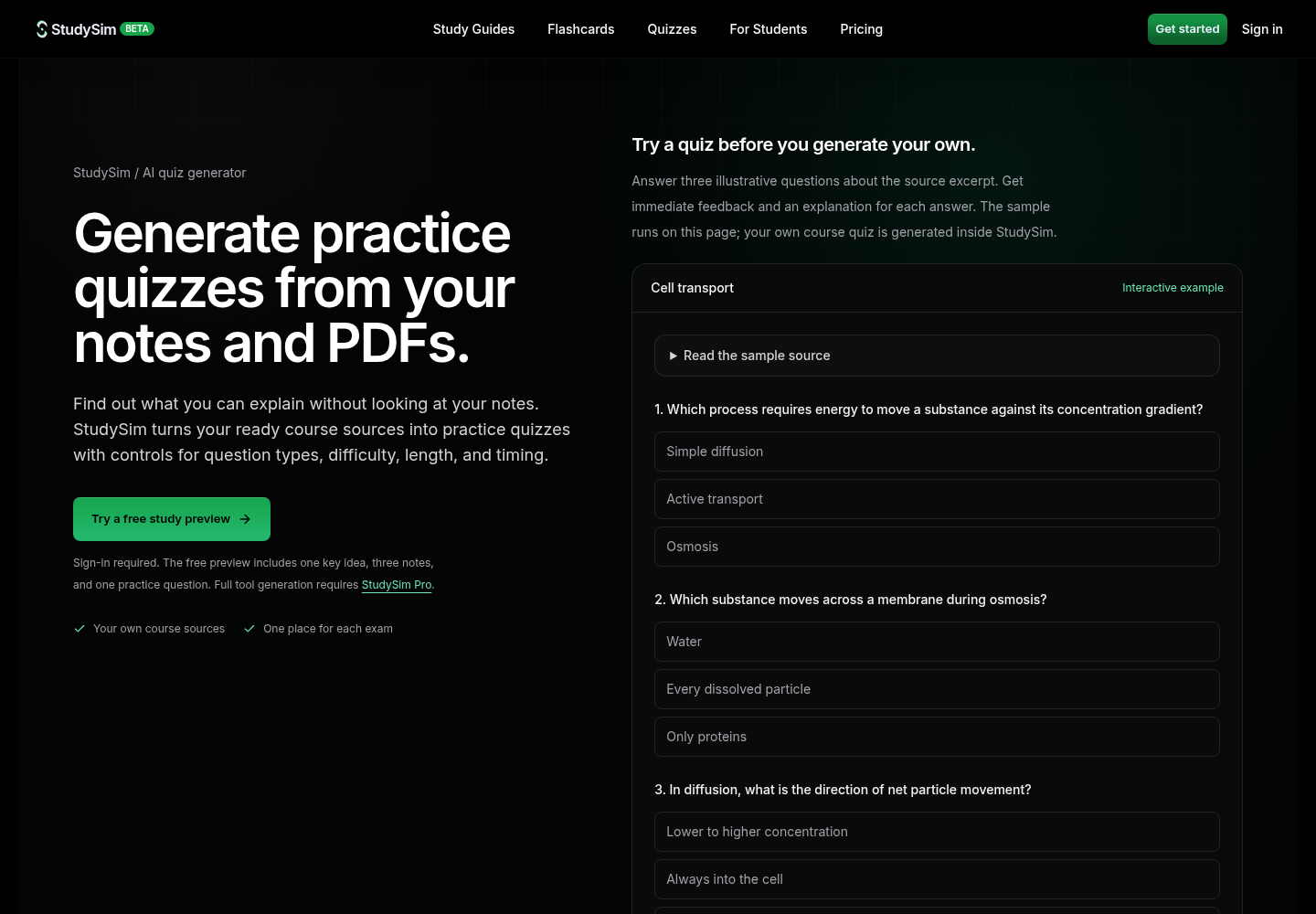
If you would rather not rebuild a quiz every time, you can generate practice quizzes from your notes and PDFs in StudySim, where the quiz, study guide and flashcards come from the same set of sources.
How to turn your notes into a quiz (not just PDFs)
While many AI PDF-to-quiz tools focus on making quizzes out of lecture slides, articles, and textbook chapters, you can also use AI to make quizzes from your notes! Depending on the tool, you may be able to paste in text from notes you typed (e.g., PDFToQuiz), upload pictures of handwritten notes (e.g., JPG and PNG file types can be uploaded into Smallpdf), or upload the notes as a document/PDF (e.g., Adobe, SlideSpeak).
Since your notes will likely be less wordy/dense than other materials, like a textbook chapter, you may find that quizzes AI generates from your notes focus more on the key ideas/terms/concepts. On the other hand, if you’d like to drill memorizing definitions/concepts, you may prefer making flashcards instead, and you can turn your PDFs into flashcards from the same file.
Sample PDF to quiz timeline for one chapter

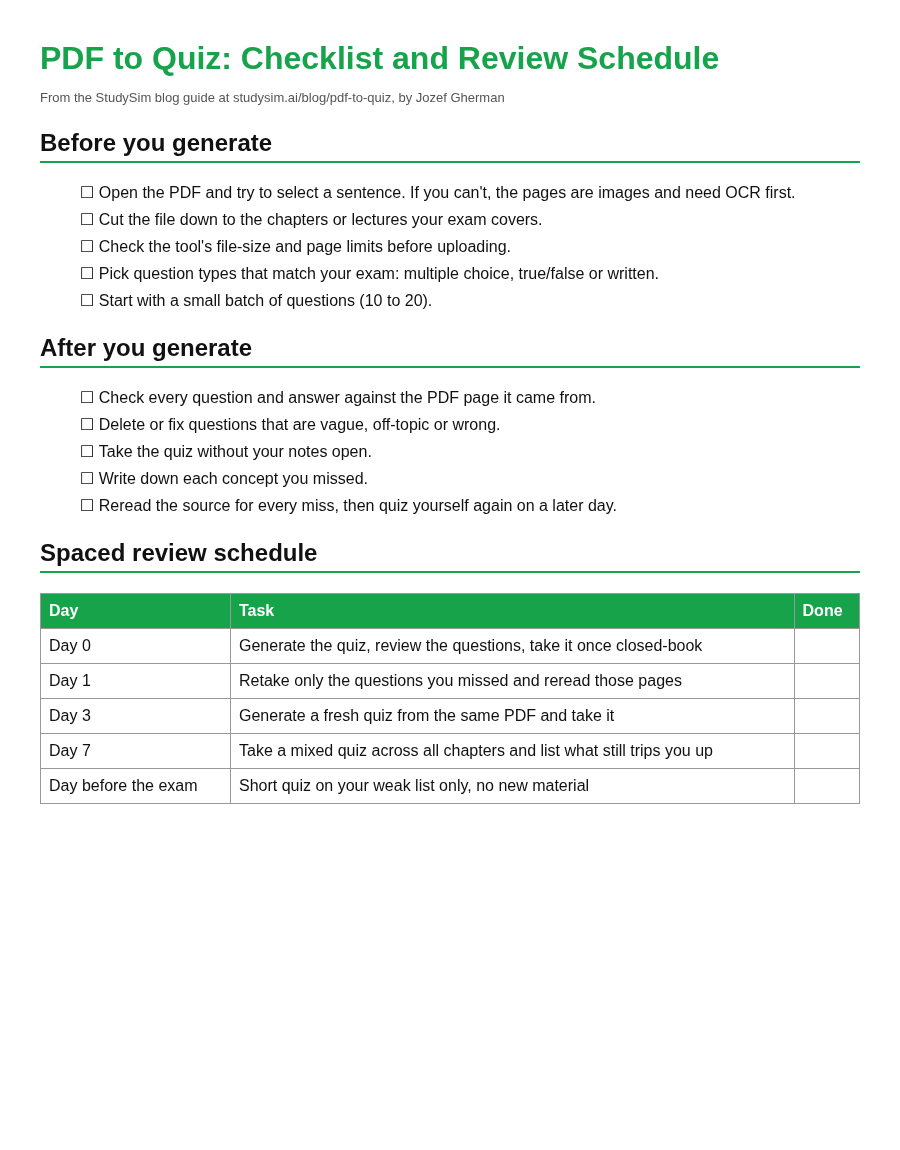
While you can follow the steps above for each chapter/unit, remember to space out studying over multiple days! Here’s a sample weekly schedule you can follow to study and quiz yourself on one chapter/unit of material (or grab the printable PDF to quiz checklist):
| Day | Task |
|---|---|
| Day 0 | Generate the quiz, review the questions, take it once closed-book |
| Day 1 | Retake only the questions you missed and reread those pages |
| Day 3 | Generate a fresh quiz from the same PDF and take it |
| Day 7 | Take a mixed quiz across all chapters and list what still trips you up |
| Day before the exam | Short quiz on your weak list only, no new material |
For the bigger picture on spacing and self-testing, read our guide on how to study effectively.
Common mistakes when you turn a PDF into a quiz
| Mistake | Fix |
|---|---|
| Uploading a scanned PDF with no text layer | Check that you can select text, or use a tool with OCR |
| Uploading the whole textbook | Split out only the chapters your exam covers |
| Trusting every generated answer | Check each question against the source page |
| Taking the quiz with notes open | Answer from memory first, then check |
| Quizzing once and moving on | Retake missed questions on Day 1, 3 and 7 |
Watch: generating a practice quiz from a PDF
This short walkthrough from Abhay Alpha shows one way to generate a large set of practice questions from a PDF and turn them into an interactive quiz:
FAQ
Can I turn a PDF into a quiz for free?
Yes. Smallpdf's AI Question Generator and Adobe's Acrobat quiz maker both say they are free with no sign-up, SlideSpeak makes a printable quiz and answer key without signing up, and PDFToQuiz gives you one free quiz on files up to 5 pages.
Can AI make a quiz from a scanned PDF?
Only if the tool reads images. Smallpdf says it uses OCR on scanned PDFs and images. SlideSpeak says image-only pages need OCR first, so run the scan through an OCR tool before uploading.
How many questions should I generate from one PDF?
Start with 10 to 20 per chapter. That is enough to find your weak spots and small enough to check every question against the source. Generate a fresh set on a later day for more practice.
Are AI-generated quiz questions accurate?
Not always. Questions can be vague, off-topic or marked with the wrong answer, so check each one against the page it came from before you rely on it. StudySim also notes that its quizzes do not predict your exam or replace your instructor's assessment.
Is quizzing yourself better than rereading?
For long-term memory, yes. In Roediger and Karpicke's 2006 study, students who took practice tests retained more on delayed tests than students who restudied the same passages.
About the author
Jozef Gherman is the founder of xyzai.io, the company behind StealthGPT and StudySim, where he builds AI tools that help students and writers study smarter and write with confidence. He writes about study techniques, exam prep, and practical ways to use AI for learning.